Home Screen
Add Best Hunting Time to your home screen like an app
No app store needed. Follow the steps for your phone and launch the forecast with one tap.
Once the icon is on your home screen, taskbar, Dock, or desktop, Best Hunting Time opens like a standalone app — no address bar, no URL to type, just the forecast. Choose your device below and follow the steps.
iPhone / iPad (Safari)
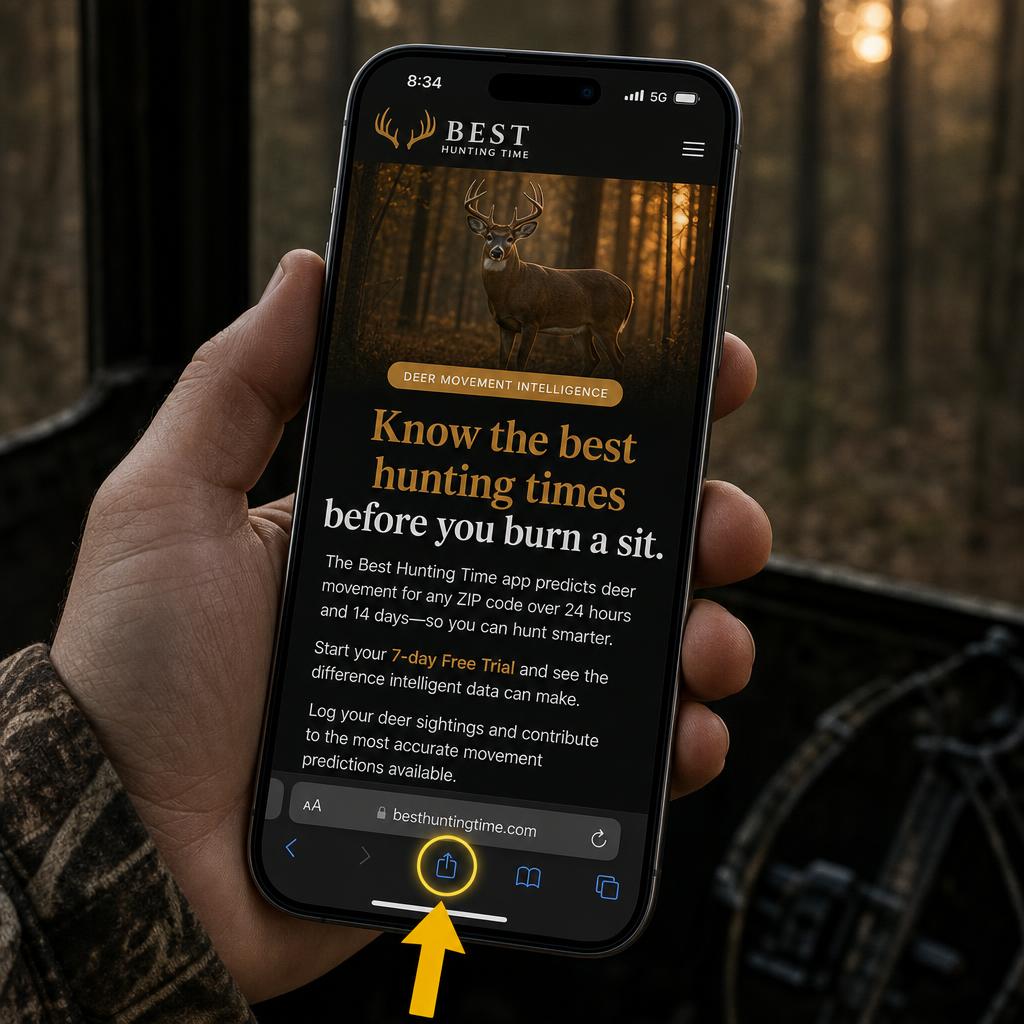
- Open besthuntingtime.com in Safari.
- Tap the Share button — the square with an arrow pointing up — usually in the bottom toolbar (center on iPhone, top-right on iPad).
- Scroll down in the share sheet and tap Add to Home Screen.
- Tap Add in the top-right corner.
- Tap the new Best Hunting Time icon on your home screen to open it full-screen.
- First time only: when you tap the icon for the first time you may need to sign in. After that, the app opens straight to your forecast every time you tap it.
Android (Chrome)
- Open besthuntingtime.com in Chrome.
- Tap the three-dot menu in the top-right corner.
- Tap Add to Home screen or Install app.
- Tap Add or Install on the prompt.
- Tap the Best Hunting Time icon on your home screen to launch it.
- First time only: when you tap the icon for the first time you may need to sign in. After that, the app opens straight to your forecast every time you tap it.
PC & Mac (Chrome, Edge, Safari)
- Open besthuntingtime.com in Chrome, Edge, or Safari on your computer.
- Chrome: click the three-dot menu in the top-right, choose Cast, save, and share, then select Install page as app (or Create shortcut if install is not available).
- Edge: click the three-dot menu in the top-right, choose Apps, then Install this site as an app.
- Safari on Mac: click the Share button in the toolbar, then select Add to Dock.
- The Best Hunting Time icon appears on your desktop, taskbar, Dock, or Start menu. Click it to open the app in its own window without typing a URL.
- First time only: when you open it for the first time you may need to sign in. After that, it opens straight to your forecast.
Tip: If you do not see the Share button, make sure you are not in a private/incognito tab and that the page has fully loaded.